
Initialize, Authenticate, and Scale: Your First Steps with MetaTrader 5 API

Welcome back! In this part, we’re going to get our hands dirty with some actual Python code to control MetaTrader 5 (MT5).
We’ll start with the absolute bare minimum to verify your connection, and then level up to a clean credential-handling setup — which is essential if you ever plan to scale up to prop trading or manage multiple accounts.
Let’s dive straight in.
1. Installing the MetaTrader 5 Python Package
First, fire up your virtual environment and install the official package:
pip install MetaTrader5pip install MetaTrader5Note: If you don’t have a virtual environment set up yet, check out my previous setup guide [Link]. Always use virtual environments — don’t pollute your global Python!
2. Hello World: Your First MT5 Script
Let’s write the simplest script possible just to see if Python and MT5 can talk to each other.
- File:
part2_first_bot.py
import MetaTrader5 as mt5

def main():
    # Attempt to initialize the MT5 terminal
    if not mt5.initialize():
        print("MT5 initialization failed")
        return
    print("MT5 initialization succeeded")
    # Always close the connection when done
    mt5.shutdown()

if __name__ == "__main__":
main()- Default Login Behavior: Calling
mt5.initialize()without arguments simply launches the terminal and connects to whichever account was last logged in. - VS Code Syntax Highlighting Glitch? If VS Code suddenly acts dumb and fails to highlight
MetaTrader5, open the command palette (Ctrl+Shift+P) and run> Python: Restart Language Server. That usually fixes it right up.
3. Leveling Up: Target Any Account via key.txt
If your ultimate goal is running bots for prop trading firms or managing multiple funded accounts, relying on the “last logged-in account” won’t cut it. You will eventually need to spin up multiple MT5 instances simultaneously.
That means your script needs to explicitly tell Windows:
- Which MT5 terminal executable to run (
path) - Which account to log into (
account&password) - Which broker server to route through (
server)
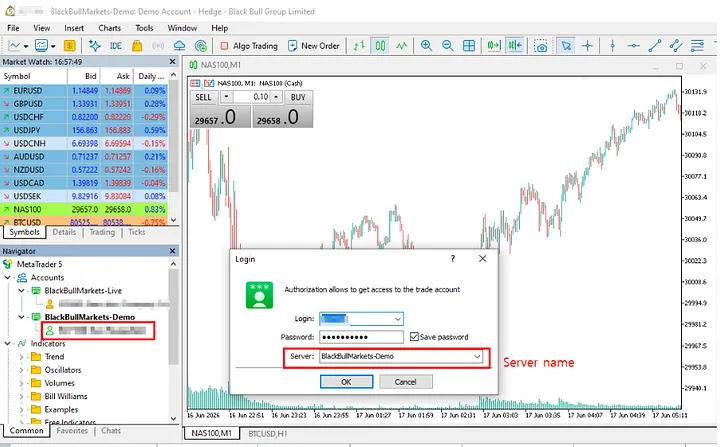
You can find the server name in the popup dialog when you click your account in MT5.
Running multiple terminals side-by-side will get its own dedicated post later. For now, let’s build a clean, modular foundation for targeting a specific account dynamically.
Step 3–1. Preparing key.txt
Never hardcode your passwords or broker logins directly into your script — especially if you’re pushing code to GitHub! We’ll keep our credentials in an external key.txt file located in the exact same workspace directory.
A. Terminal Path
Find where your broker’s MT5 is installed. By default, it’s usually: C:\Program Files\MetaTrader 5\terminal64.exe
(Your path might differ depending on your broker name or drive letter. Locate the actual terminal64.exe file).
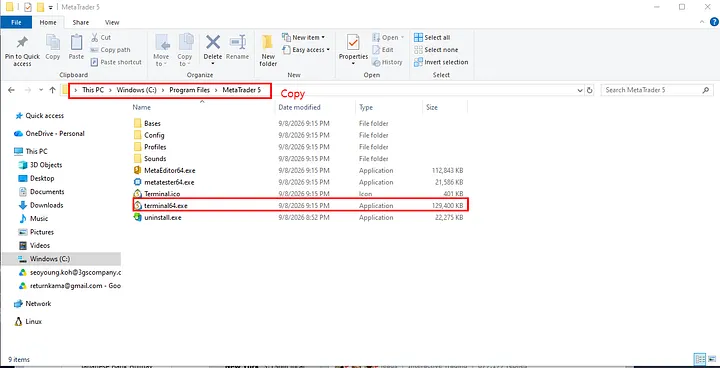
B. Account Number
Your account number is plainly visible in the Navigator window or the top window title bar in MT5.
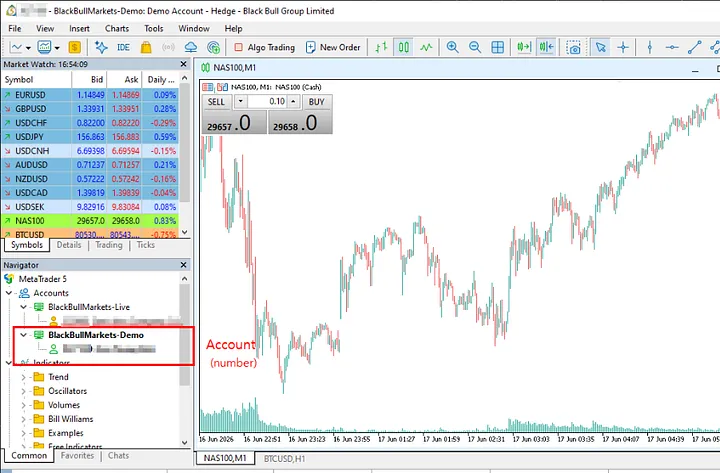
C. Password
Use the master/trading password you set up when you created the account.
D. Broker Server
Click your account in the MT5 Navigator panel or check your account details popup to see the exact server name.
(If you followed my previous tutorial [Link], simply enter BlackBullMarkets-Demo here.)
E. Put It All in key.txt
Create a plain text file named key.txt and paste your 4 parameters line by line, in this exact order:
C:\Program Files\MetaTrader 5\terminal64.exe
429125
testpwd!!!123
BlackBullMarkets-Demo
Step 3–2. Writing the Extended Bot Script
Make sure part2_extended_bot.py and key.txt live in the same directory.
- File:
part2_extended_bot.py
import MetaTrader5 as mt5

def main() :
    # Read credentials line by line : path, account, pwd, server
    with open("key.txt") as f:
        path, account, pwd, server = [line.strip() for line in f if line.strip()]

    # Initialize and log in to MT5 terminal

    if not mt5.initialize(
        path = path ,           # Line1 : MT5 folder
        login = int(account),   # Line2 : MT5 account (number, not string )
        password = pwd,         # Line3 : MT5 password
        server = server,        # server name ( depends on your broker )

    ):
        print("MT5 initialization failed")
        return


    print("MT5 initialization succeeded")

    mt5.shutdown()

if __name__ == "__main__" :
main()Pro Tip to Avoid Bugs:
Notice login=int(acc)? The MT5 Python API is very strict: the account login must be an integer, not a string. Passing "12345678" as a string will quietly fail or throw an authentication error, so always cast it to int.
Run the script. If everything was entered correctly, you’ll see your account details (equity, balance, leverage, server name) printed in the console!
That’s it for Part 2! Now we have a solid, credential-isolated base. In the next tutorial, we’ll start pulling live market data and historical bars straight into pandas DataFrames. Stay tuned!