To build an automated trading bot using Python and MetaTrader 5 (MT5), proper environment setup is essential.
In this first part of the tutorial series, we will cover the following topics:
- Python Installation (Make sure to install Python 3.12)
- Visual Studio Code (VS Code) Installation
- Broker Account Setup (We will use BlackBull Markets for this guide)
- MetaTrader 5 Installation & Account Connection
If you have already set up some of these components, feel free to skip to the relevant section. If you are starting completely from scratch, just follow along step by step.
1. Installing Python
When building a trading bot, we will be installing Python 3.12.
To connect Python to MT5, the exact Python version doesn’t strictly matter. However, the ultimate goal of building a Python-based trading bot is often to implement AI and machine learning models down the road. For smooth AI library compatibility (such as TensorFlow or PyTorch), you should avoid the very latest releases (like Python 3.14.x at the time of writing) and stick with Python 3.12.
It might feel like an extra step, but let’s make sure we have Python 3.12 properly installed.
(1) Head over to the official Python website.
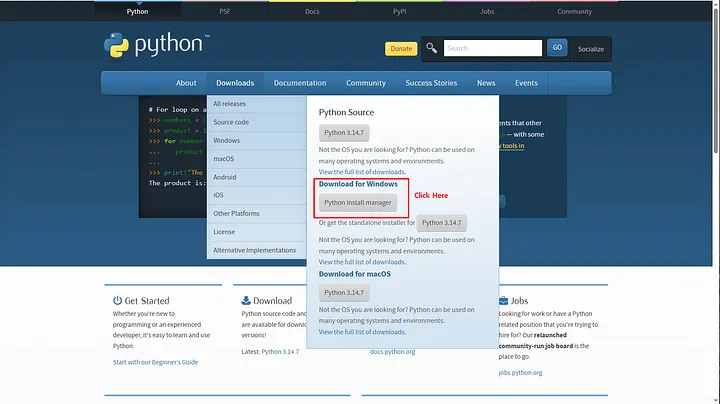
Go to python.org. As shown in the screenshot below, navigate to the Download menu and select “Python install manager” under Download for Windows.
(2) Install the downloaded “Python install manager”.
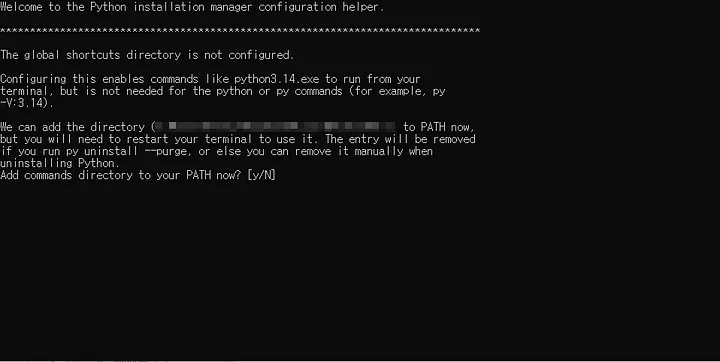
Run the installer, and a black command prompt window will pop up. Don’t worry — just press Enter and keep answering yes through the prompts.
Even though we need Python 3.12, this installer will automatically install Python 3.14 by default. Don’t panic! We will install Python 3.12 manually in the next step.
(3) Open the Windows Command Prompt (cmd).
Press Win + R on your keyboard to open the Run dialog box. Type cmd and press Enter. A black command prompt window will open immediately.
In the command prompt, enter the following command:
py install 3.12
This will install Python 3.12 on your system. Once the installation completes, verify it by typing:
py --list
You should see both the default 3.14.x version installed in step (2) and the 3.12.x version you just installed listed below it. As long as 3.12.x appears, you are good to go!

2. Installing VS Code
You can use any code editor you prefer, but I strongly recommend Visual Studio Code (VS Code). It is one of the most widely used and reliable editors among Python developers. If you already have a favorite IDE, feel free to stick with it, but this tutorial series will be based on VS Code.
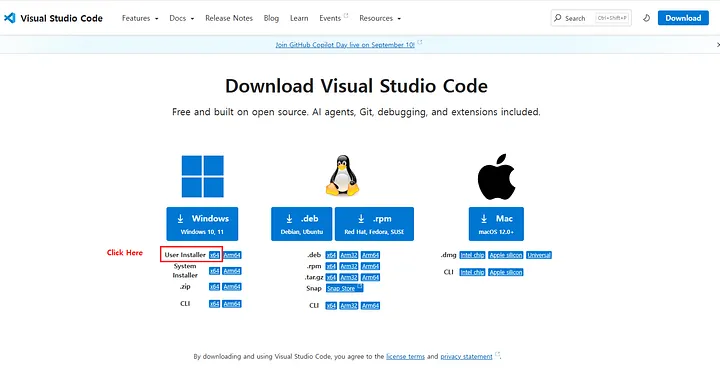
(1) Download and install VS Code.
Search for “VS Code install” on Google, download the Windows installer, and run it. Simply follow the standard installation prompts (click Next, Next… Finish).
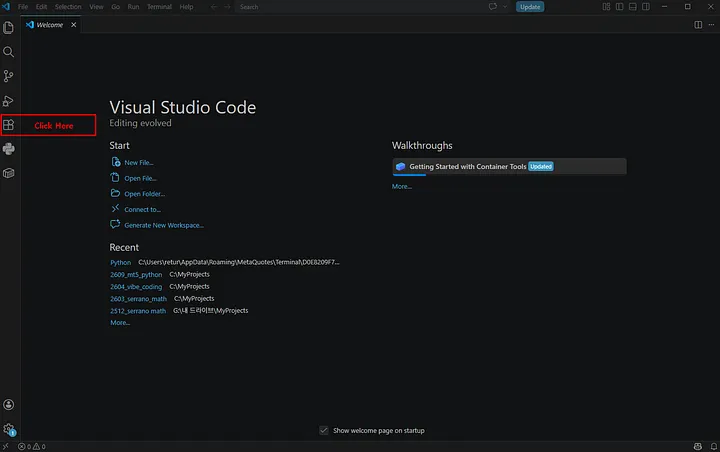
(2) Install essential Python extensions.
Launch VS Code after the installation finishes. On the left activity bar, click the Extensions icon (the one that looks like building blocks).
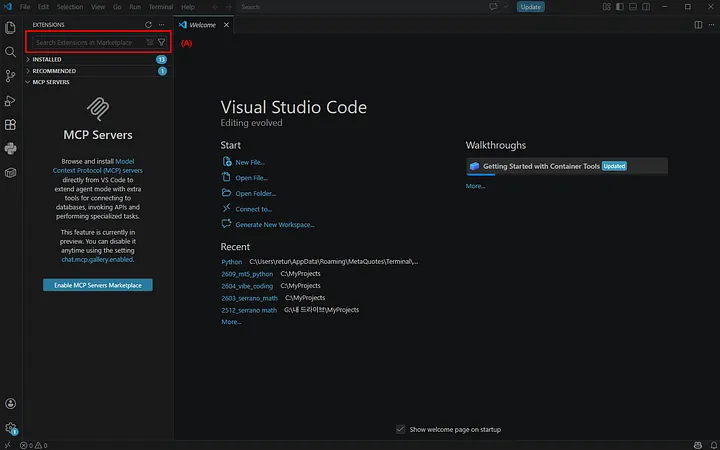
In the search box (A) (see below) , type python.
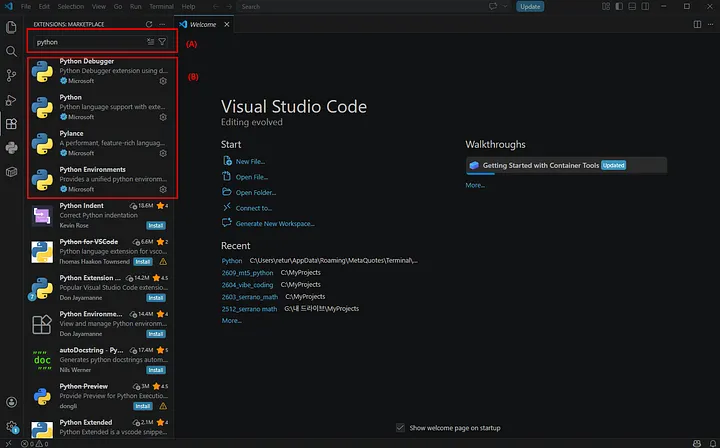
A list of available extensions will appear. Locate the extensions authored by “Microsoft” shown inside the red box (B) and install them. (If you haven’t installed them yet, click the blue Install button next to each extension.)
Now your VS Code environment is ready!
3. Creating a Broker Account (BlackBull Markets)
(1) Open a broker account.
This tutorial series uses BlackBull Markets as our primary broker. (I have explained why I recommend BlackBull in a separate post linked here). You are welcome to use another broker if you already have one, but keep in mind that symbol conventions, spreads, and execution parameters may differ slightly from this guide.
Sign up for a BlackBull account and complete the standard KYC (identity verification) process.
(2) Navigate to Demo Trading.
Once logged into the BlackBull client portal, you will see your dashboard. We will create a Demo account for MetaTrader 5. Click on Demo Trading in the sidebar menu.
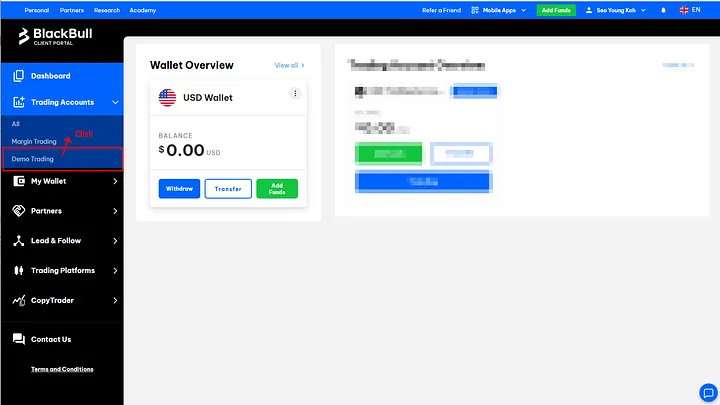
(3) Create an MT5 Demo Account.
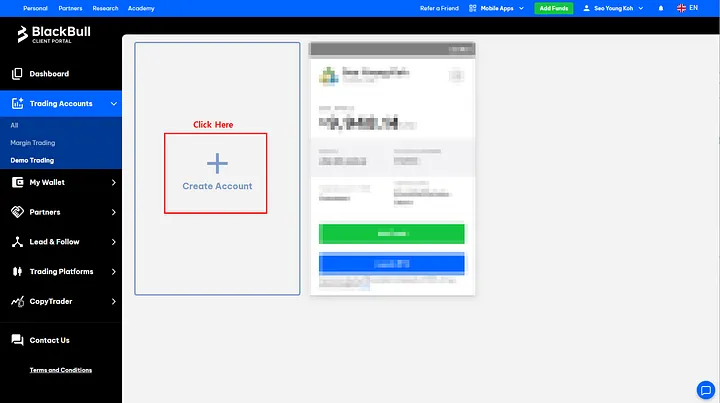
On the Demo Trading page, click the Create Account button.
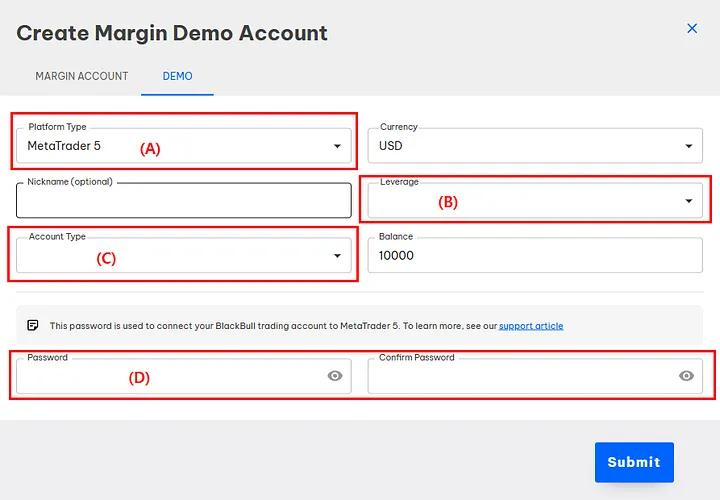
A pop-up modal will appear. Configure the settings as follows:
- (A) Platform Type:
MetaTrader 5 - (B) Leverage:
1:100 - (C ) Account Type:
Standard - (D) Password: Enter your desired password
Once entered, click Submit.
(4) Save your Account Number.
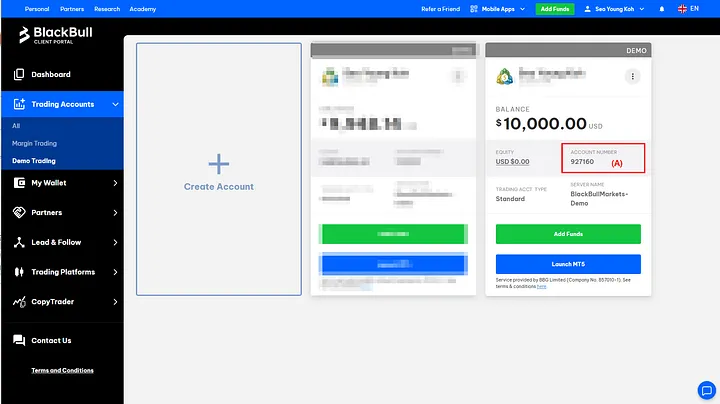
You will be redirected back to the “Demo Trading” menu. Make sure to copy and save the Account Number (A) shown here — you will need it shortly to log into the MetaTrader 5 terminal.
4. MetaTrader 5 Setup & Account Integration
(1) Download and install MetaTrader 5.
Search for “MetaTrader 5” on Google, download the official installer, and run it.
Crucial Note: You must install MetaTrader 5, not MetaTrader 4. MetaTrader 4 does not support the modern native Python API. Make sure you are installing MT5!
(2) Connect your BlackBull account to MT5.
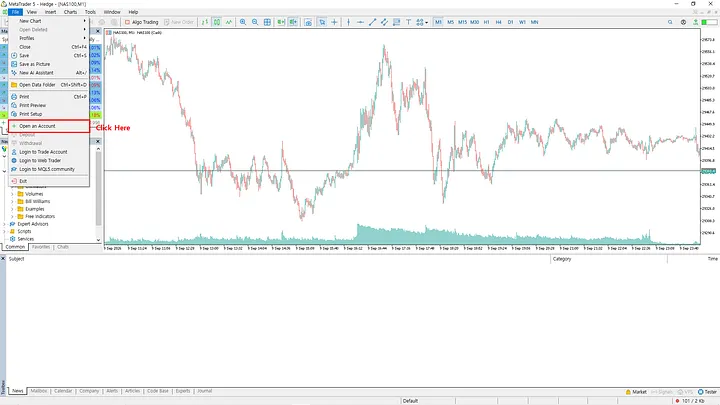
Launch MetaTrader 5. In the top menu bar, click File > Open an Account.
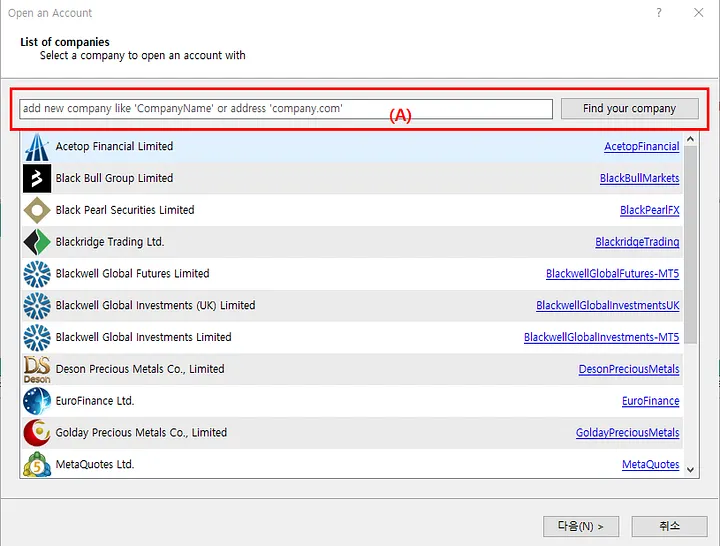
In the pop-up search box (A), type Black Bull. Select Black Bull Group Limited from the list and click Next.
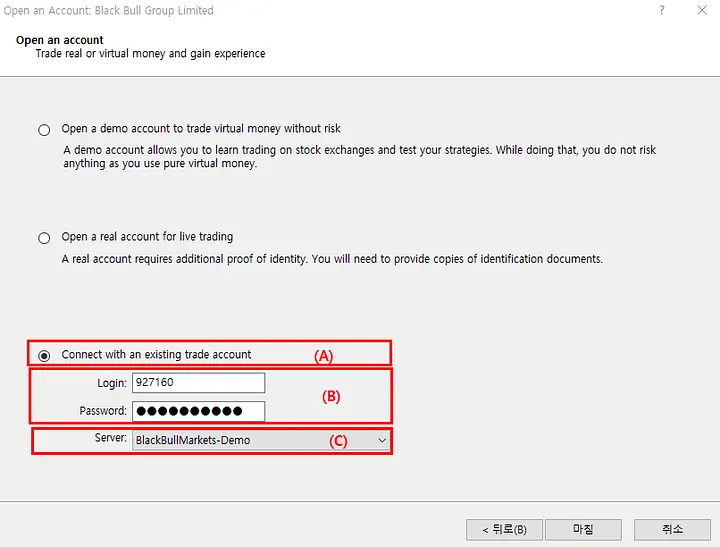
On the next screen:
- Select the third option: “Connect with an existing trade account” (A).
- In the Login (B) field, paste the Account Number you copied earlier from BlackBull.
- In the Password field, enter the password you created for the demo account.
- Make sure the Server ( c ) is set to
BlackBullMarkets-Demo.
Click Finish.
(3) Confirm the connection.
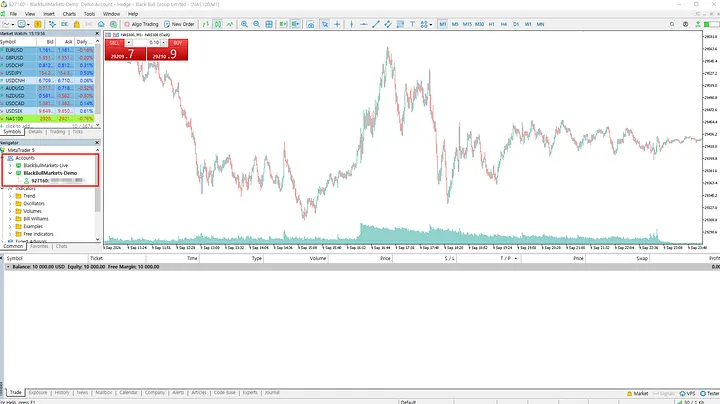
Look at the Navigator window on the left side of MT5. Under the Accounts dropdown, you should see BlackBullMarkets-Demo along with your Account Number and name. If they appear correctly, your account is connected successfully!
What’s Next?
Congratulations! You now have Python, VS Code, and MetaTrader 5 fully configured and ready for algo-trading development.
In the next part, we will write our very first Python script to connect to the MT5 terminal and pull live market data. See you in the next tutorial!